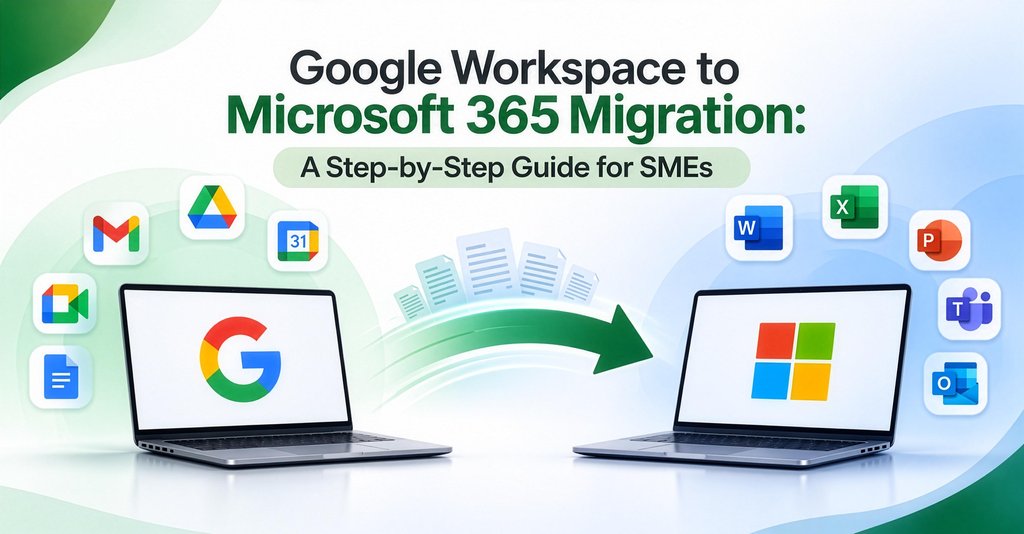
The decision to move from Google Workspace to Microsoft 365 is usually made in a meeting. The finance team wants desktop Excel. A big client works in Teams. Someone wants better device security. Everyone agrees.
Then comes the part nobody discussed: how do we move ten years of email, files and calendars without losing anything or stopping work for a week?
We've run this migration for growing companies across India and the GCC, including multi-company groups with dozens of mailboxes. Done properly, users close Gmail on Friday and open Outlook on Monday with everything in place.
Here's the plan we follow.
What moves, and what doesn't
- Gmail (email, labels) → Exchange Online / Outlook (folders): Yes
- Google Calendar → Outlook Calendar: Yes
- Google Contacts → Outlook Contacts: Yes
- Google Drive (My Drive) → OneDrive: Yes, with a migration tool
- Shared Drives → SharePoint / Teams: Yes, with a migration tool
- Google Docs, Sheets, Slides → Word, Excel, PowerPoint: Converted during migration
- Google Chat history → Teams: Usually not; plan around it
- Google Forms, Sites, Apps Script → Forms, SharePoint, Power Automate: No, these need rebuilding
Plan for this early: Apps Script automations, Google Forms and AppSheet apps don't migrate. List them in week one so nothing breaks silently.
The 9-step migration plan
Step 1: Inventory everything
List every user, shared mailbox, group, alias, Shared Drive and integration (CRM, ERP, scanners and websites that send email). Note the mailbox and Drive size per user. This decides your timeline.
Step 2: Choose your licences
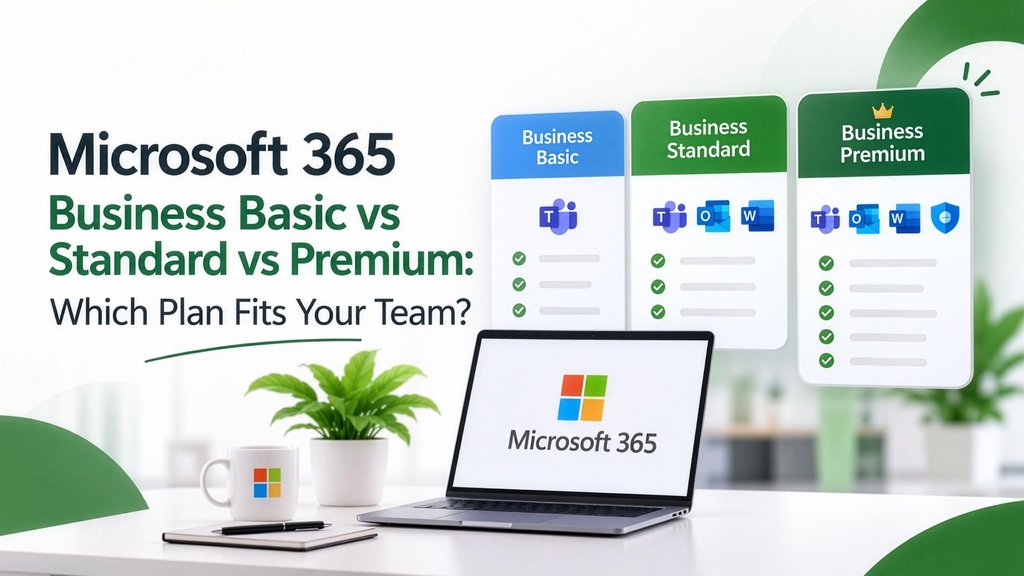
Match each user to Business Basic, Standard or Premium based on what they actually use. (See our guide: Microsoft 365 Business Basic vs Standard vs Premium.) Buy the licences before you start.
Step 3: Set up the Microsoft 365 tenant
Add and verify your domain, create users (matching their existing email addresses), set up shared mailboxes and groups, and turn on multi-factor authentication from day one.
Important: verify the domain, but don't change the MX record yet. Email keeps flowing to Gmail until cut-over day.
Step 4: Pick a migration method
- Microsoft's built-in Google Workspace migration in the Exchange admin centre moves Gmail, calendars and contacts using a Google service account. It's free and works well for most SMEs.
- Microsoft Migration Manager moves Google Drive files to OneDrive and SharePoint.
- Third-party tools are worth it for very large mailboxes, complex Shared Drives or tight timelines.
Step 5: Run a pilot
Migrate 2–3 users first, ideally including one heavy user and one sceptic. Check folders, attachments, calendar invites and shared files. Fix problems while they're small.
Step 6: Pre-stage the bulk data
Migrate historical email and files for everyone while they are still working in Google. This can take days for large mailboxes, but users don't notice.
Step 7: Cut over
On a Friday evening or weekend:
1. Switch the MX record to Microsoft 365.
2. Update SPF, DKIM, DMARC and autodiscover DNS records.
3. Run a final delta sync to pick up anything that arrived in Gmail since pre-staging.
Email delivery shifts over within hours as DNS updates around the world.
Step 8: Day-one support
Have someone on hand Monday morning. Common questions: "Where are my labels?" (they're folders now), "How do I add my signature?", "Where's the shared drive?" A one-page cheat sheet saves hours.
Step 9: Decommission Google carefully
Keep Google Workspace running for 2–4 weeks for any stragglers, take a final export for your records, then cancel. Don't cancel on cut-over day.
Typical timeline
Small — Up to 25 mailboxes — 1–2 weeks
Medium — 25–100 mailboxes — 2–4 weeks
Larger or multi-company — 100+ mailboxes — 4–8 weeks, in phases
Most of the time goes into planning and pre-staging. The actual cut-over is a single evening.
7 mistakes that cause lost email
- Changing the MX record before the tenant is ready.
- Forgetting aliases and group addresses (sales@, info@, accounts@).
- Missing scanners, websites and apps that send email through Gmail SMTP.
- Skipping SPF, DKIM and DMARC, so your mail lands in clients' spam.
- Not running the final delta sync.
- Cancelling Google Workspace too early.
- No user communication. Tell people what will change, when, and who to call.
Frequently asked questions
How long does a Google Workspace to Microsoft 365 migration take?
For most small businesses, one to two weeks from planning to cut-over. The switch itself happens over one evening or weekend.
Will we lose any emails during migration?
Not if it's planned properly. Pre-staging plus a final delta sync after the MX change makes sure every message arrives.
Do Google Docs and Sheets convert to Word and Excel?
Yes. Migration tools convert them to Office formats. Complex formulas, scripts and add-ons should be checked after migration.
Can users keep working during the migration?
Yes. Users work in Google as normal until cut-over, then start in Microsoft 365 the next working day.
Let us handle the move
LABOFWEB is a Microsoft 365 reseller and migration partner for SMEs in India and the GCC. We plan, migrate, cut over and support your team on day one.
Ready to Elevate Your Digital Operations?
Whether you need custom ERP solutions, web & mobile applications, or sustainability management, our expert team is here to help you scale efficiently.